One email every Monday morning: last week's hours per client, billable and non-billable side by side.
You see how much time went on unbillable work only when you build the invoices, weeks after anyone could change it.
The team meeting opens with how much you billed last week, and nobody has the number.
Unbilled calls, rework and extra support for a single client add up without anyone noticing.
A report you have to go and look for gets skipped in a busy week.
Your team logs time as usual. The numbers come to you.
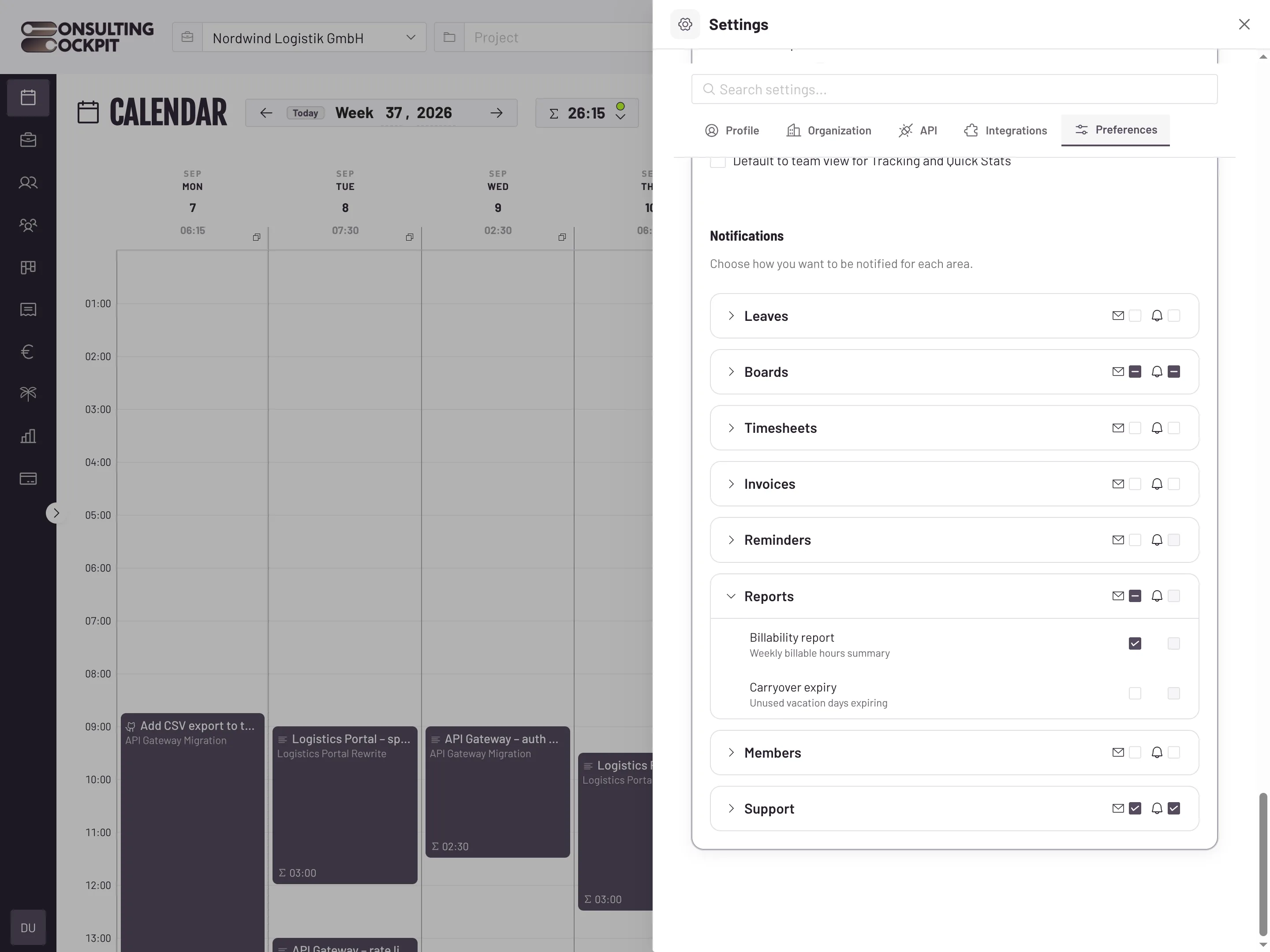
In Settings, open Preferences and, under Reports, tick the email box next to Billability report. It stays off until an owner switches it on.
Consultants mark each time entry as billable or not. No extra step and no second form.
Every Monday morning the email covers the full week before, with the finished time entries of the whole team.
Each client gets total hours, billable hours and non-billable hours, so the client that swallowed the week stands out.
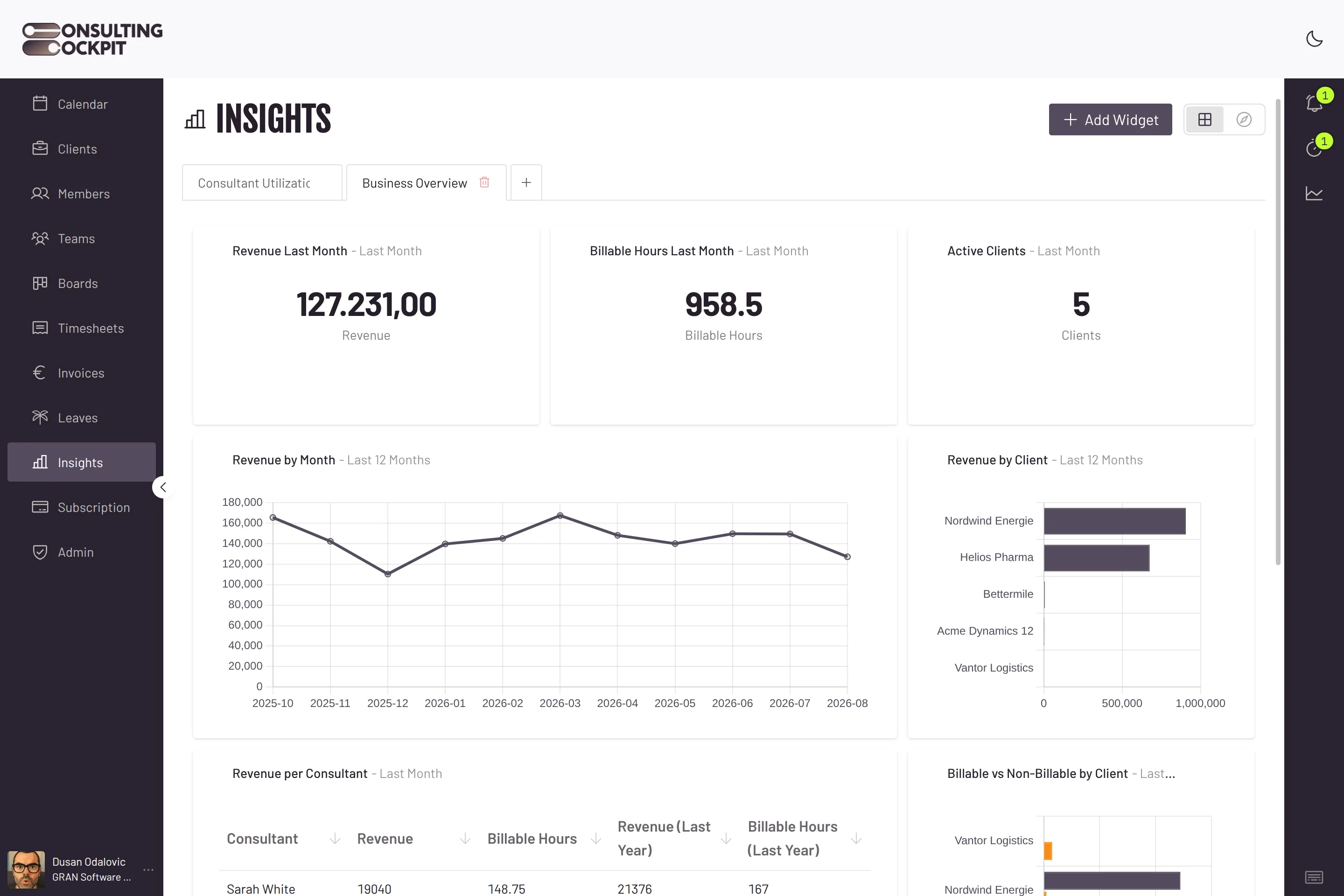
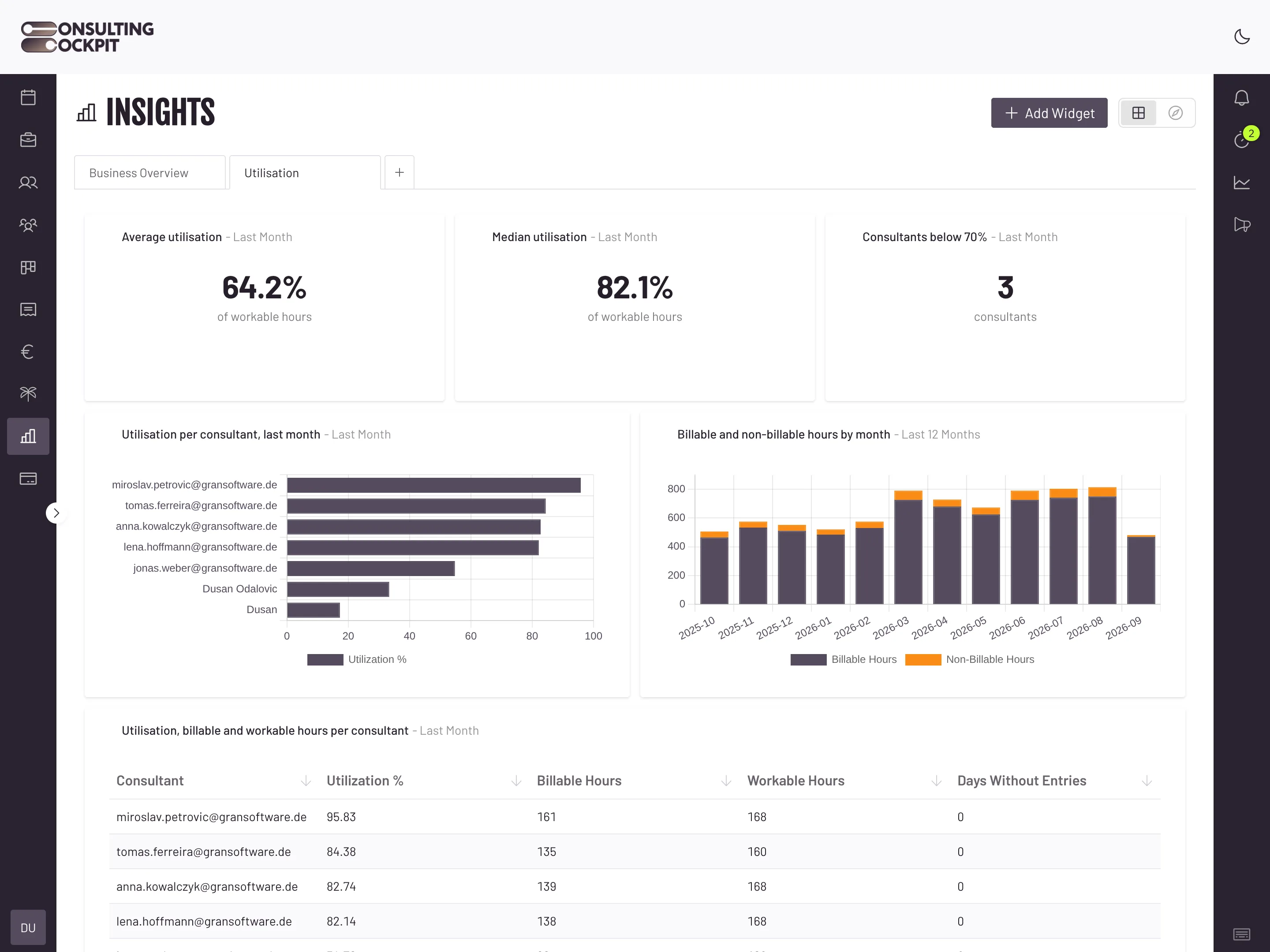
The same hours are in the Insights area, where you can break them down by consultant and month.
The email arrives only when there is something to report, and only for owners who asked for it.
If nobody tracked time last week, no report is sent. There is no empty email to delete.
Only organisation owners see the setting, and each owner switches the email on or off for themselves. Consultants never receive it.
Only finished time entries count. A timer still running on Monday morning does not inflate last week's figures.
The report covers Monday to Sunday, whatever day your calendar starts the week on, so weeks stay comparable.
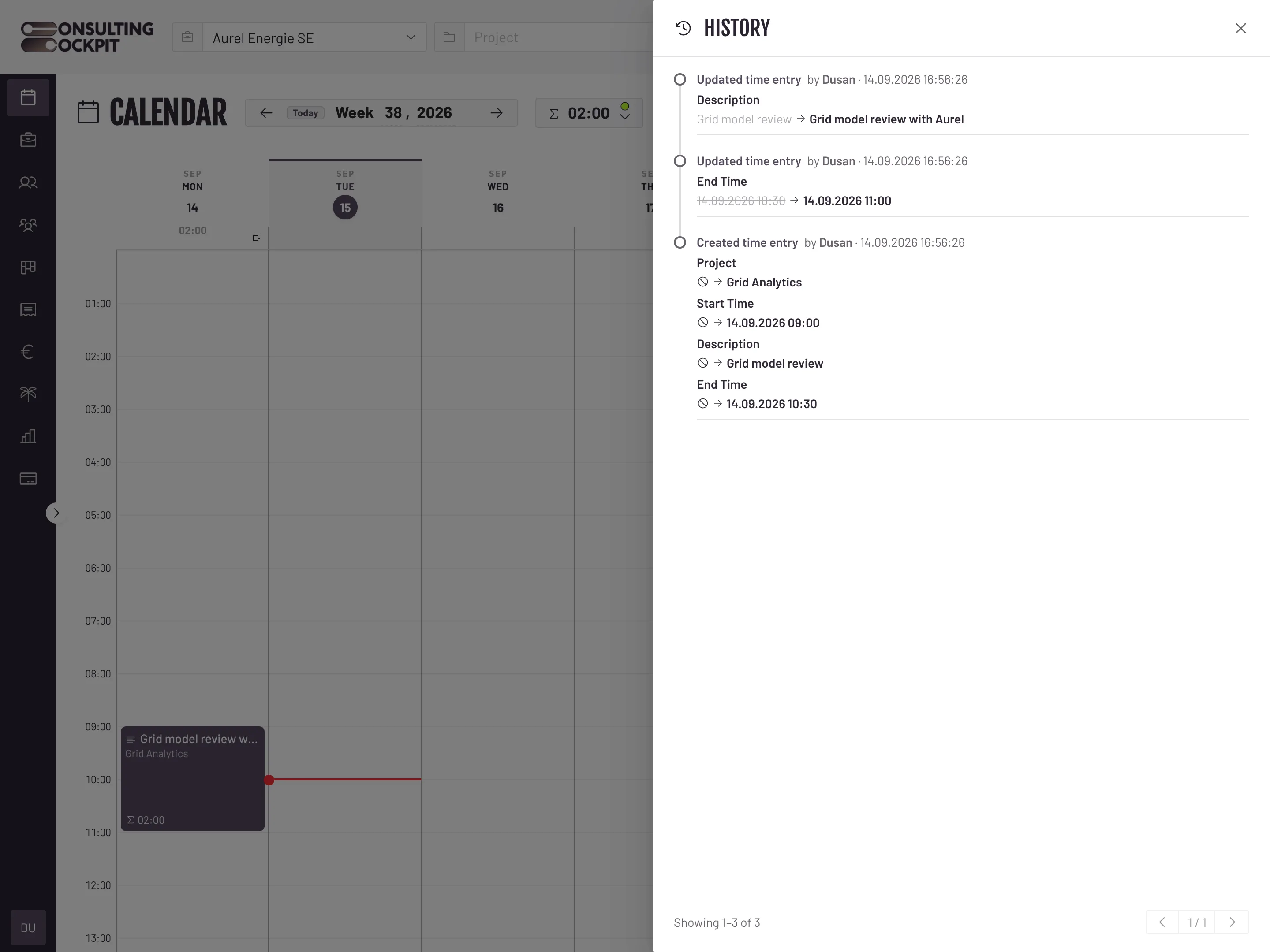
For the live view behind the email, the split per consultant rather than per client, and why every reported hour keeps its change history for the tax audit, see Analytics Dashboard , Utilisation Reporting and GoBD Time Records
Real screens from the product — swipe or use the arrows.
Organisation owners who switched it on under Preferences, Reports. Each owner decides for themselves, and it is off by default.
Every Monday morning, for the Monday-to-Sunday week before. There is no daily or monthly version and no custom date range.
The billable flag on each time entry. Non-billable hours are the tracked hours for a client that were not marked billable.
No. It shows one row per client with total, billable and non-billable hours. The per-consultant view is in Insights.
No. The email lists hours only. Revenue and utilisation per consultant are in the Insights area.
No. It is a table in the email body, sent to owners only, with no attachment.
Switch on the weekly billability report and see where last week's hours went, client by client. Free for 30 days.