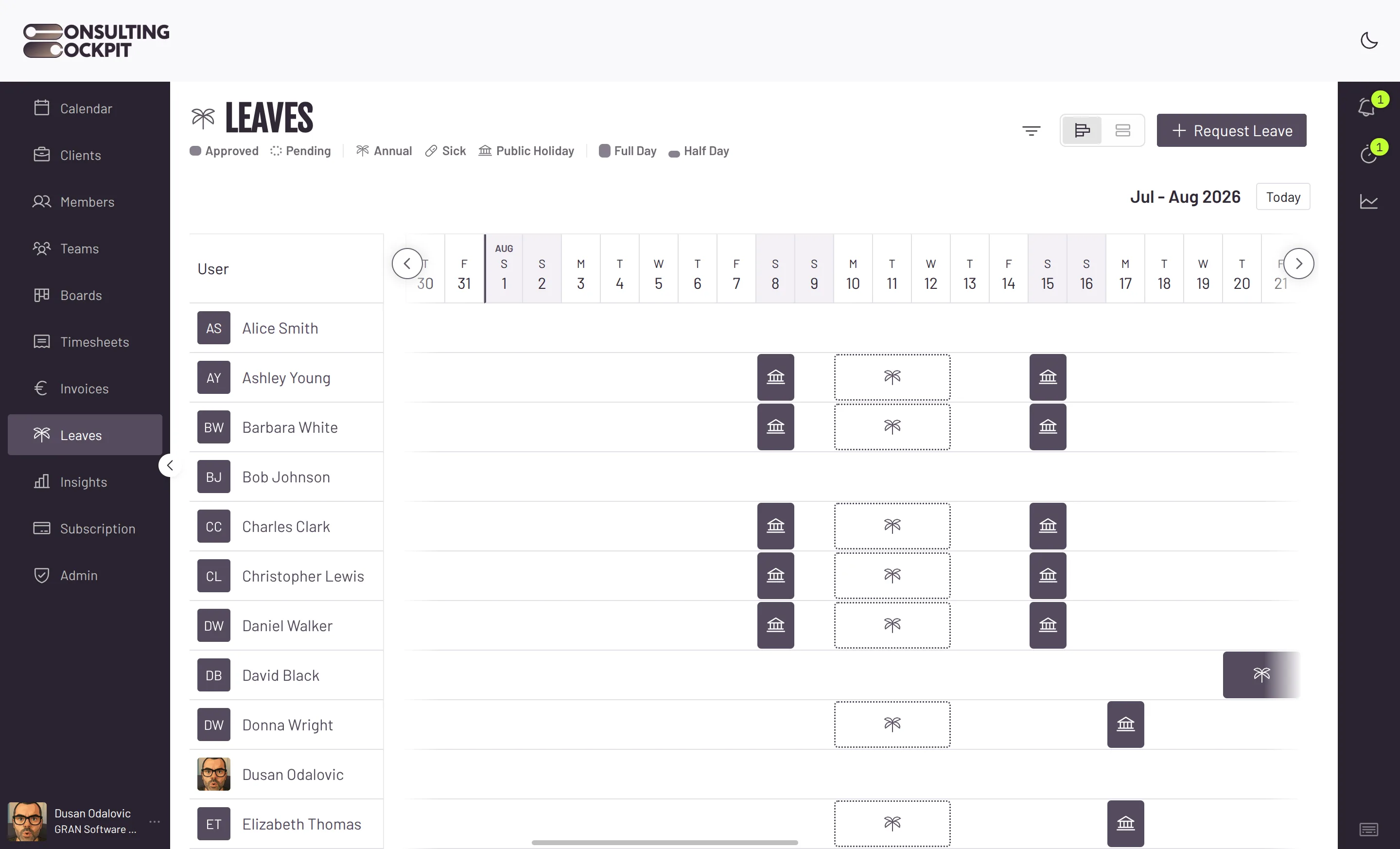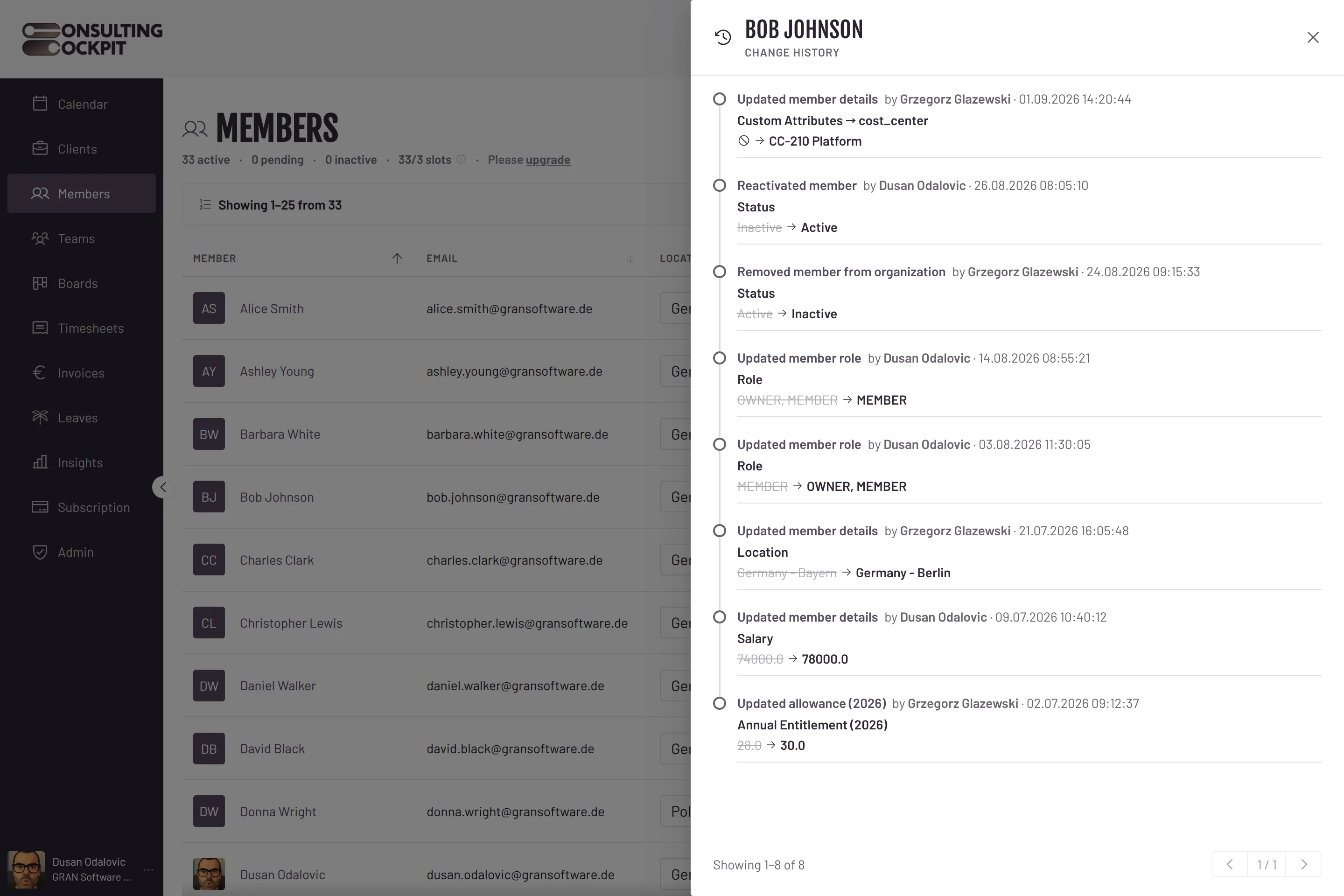
Every change to a salary, a role, a location or a leave entitlement is written down as it is saved, with the name of the person who made it and the exact time.
The payroll review asks for the date of the last raise and who entered it. The spreadsheet only shows today's figure.
Someone changed a consultant's annual leave days last spring. Nobody can say who, or what the number was before.
A consultant relocated to Berlin, and the public holidays changed with the location. The date of the switch is gone.
The office manager who made the change is gone, and the reasoning went with them.
Nothing to switch on and nothing to fill in afterwards.
Edit a salary, a location or custom attributes in the member profile, make someone an owner or a member, or deactivate and reactivate them. Each change is recorded.
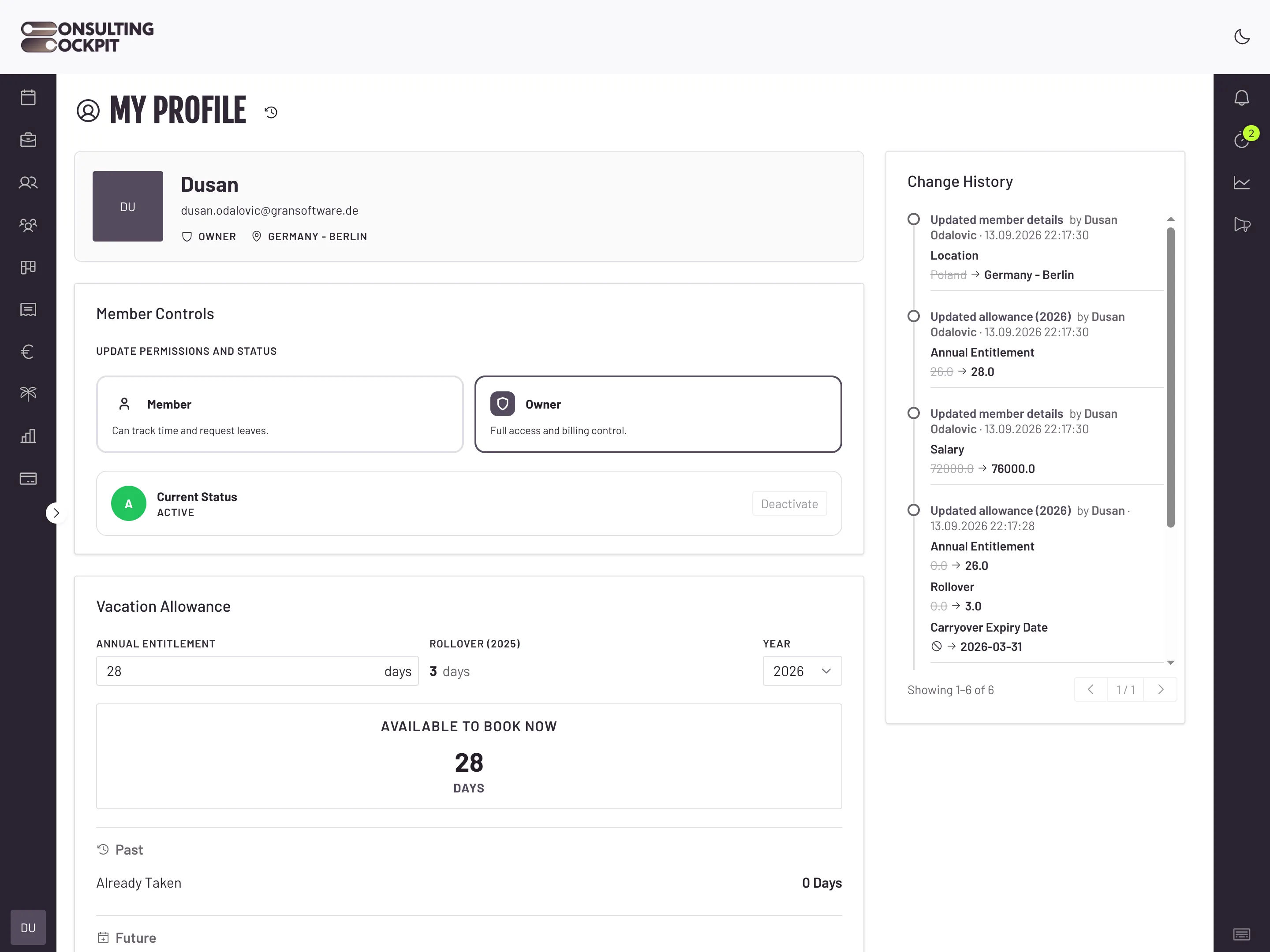
Annual entitlement, rollover days and the carryover expiry date are recorded for the year they belong to, so 2025 and 2026 never mix.
Each line names the field in plain words, such as Annual Entitlement or Location, and shows the value before next to the value after.
Every entry carries the name of the person who saved it and the date and time to the second, shown in your own time zone.
Owners open View History in the member profile. Each consultant opens Show History on their own profile.
History entries cannot be edited or deleted in Consulting Cockpit. What was recorded stays as it was.
Only an owner of the organisation can change salaries, locations and custom attributes, so every such entry names an owner.
People appear by name and locations as country and region, so the history reads without a lookup table.
Nothing in the app removes older entries. The history pages back ten entries at a time, newest first.
Entitlements are managed where leave is booked, booked hours and board tasks keep their own history, and each team keeps a record of who added or removed its members, see Days Off Management , Audit Trail for Time Tracking and Team Access by Client
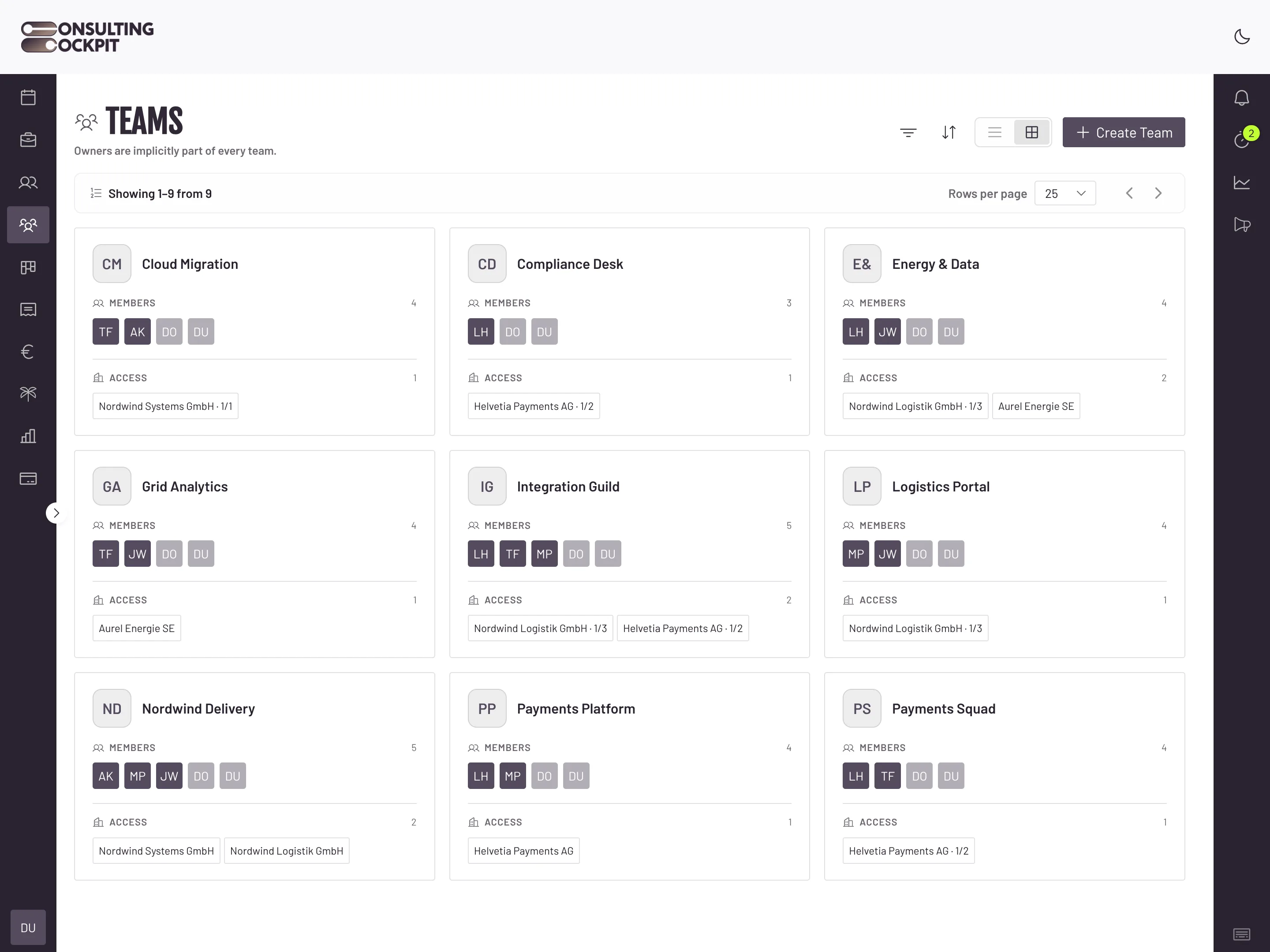
Real screens from the product — swipe or use the arrows.
Salary, location, role, active or inactive status, custom attributes, and the yearly leave allowance: annual entitlement, rollover days and carryover expiry date.
Yes. Time entries and board tasks keep their own history, opened from the entry or the task itself.
Owners, from the member profile in the Members area. Each consultant can open the history of their own profile.
No. There is no way to edit or delete a history entry inside Consulting Cockpit.
Not as a file today. The history is shown on screen next to the record, ten entries per page.
We claim no certification. The history supports payroll and tax reviews by showing who changed what and when; it does not replace your payroll records.
Every salary, role and entitlement change, with a name and a time next to it. Free for 30 days.