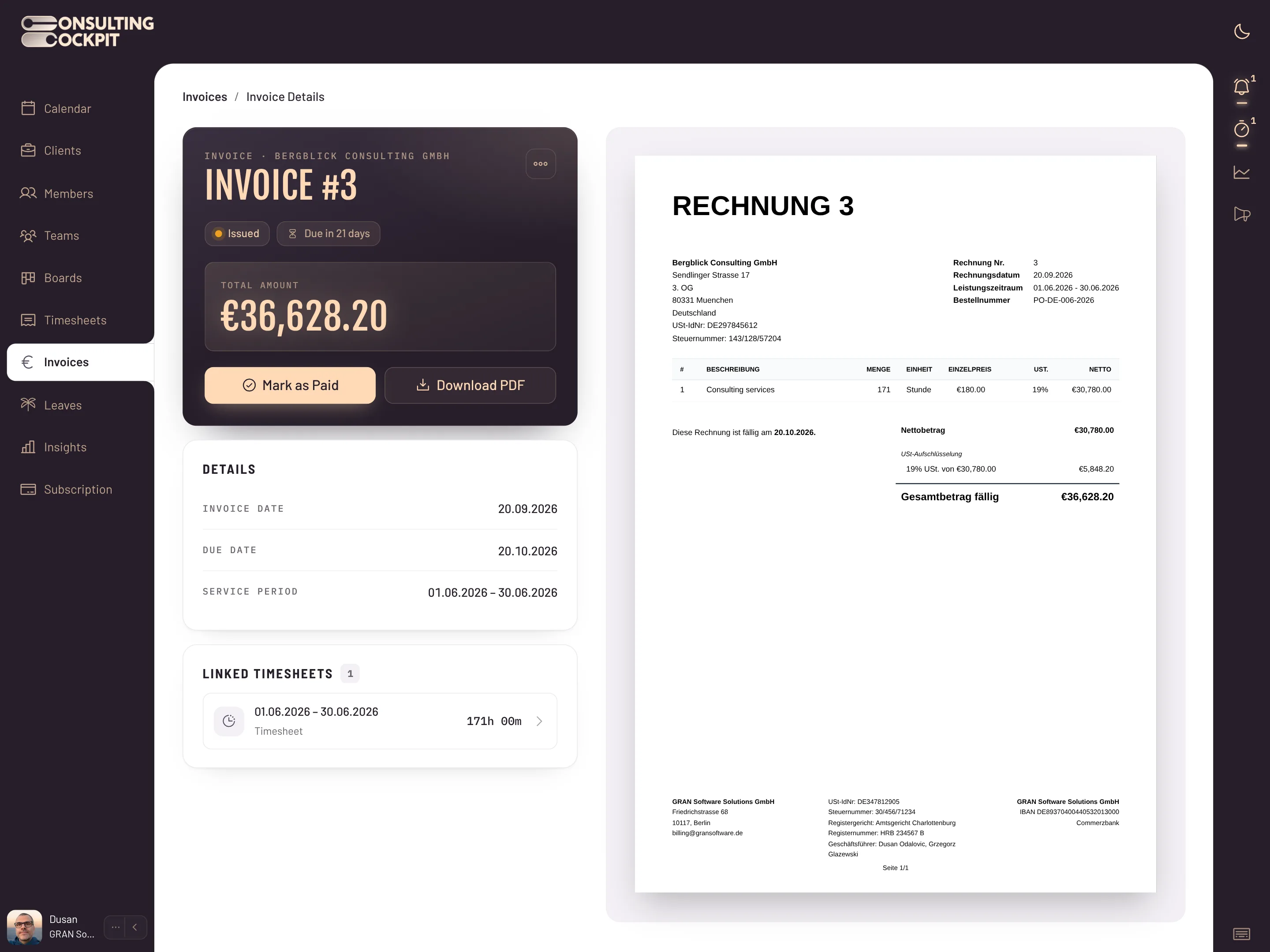
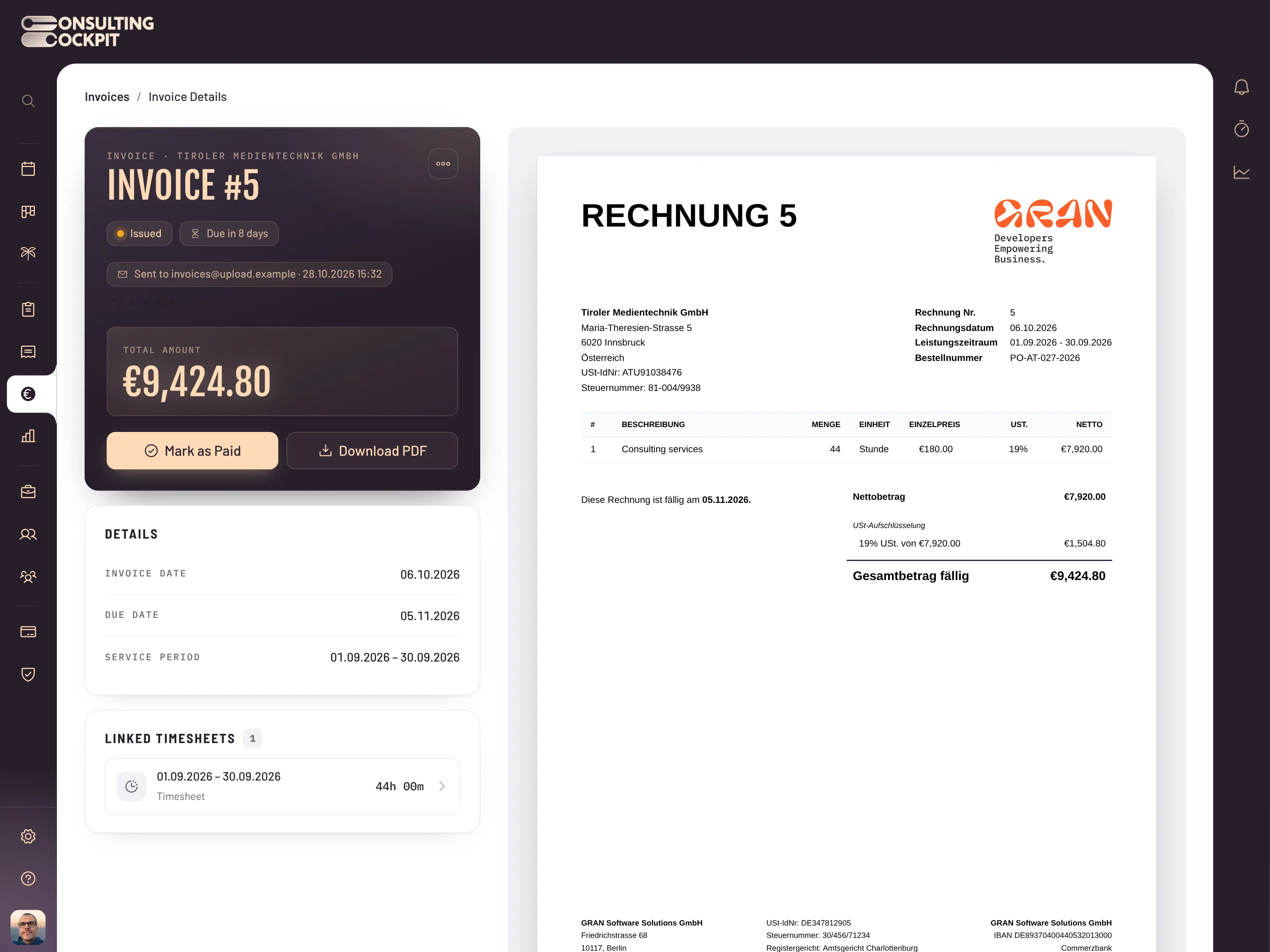
Finish an invoice and it goes straight to your DATEV Upload Mail or Lexware Office inbox: the PDF with its ZUGFeRD XML, under a subject you choose, with the send status shown on the invoice.
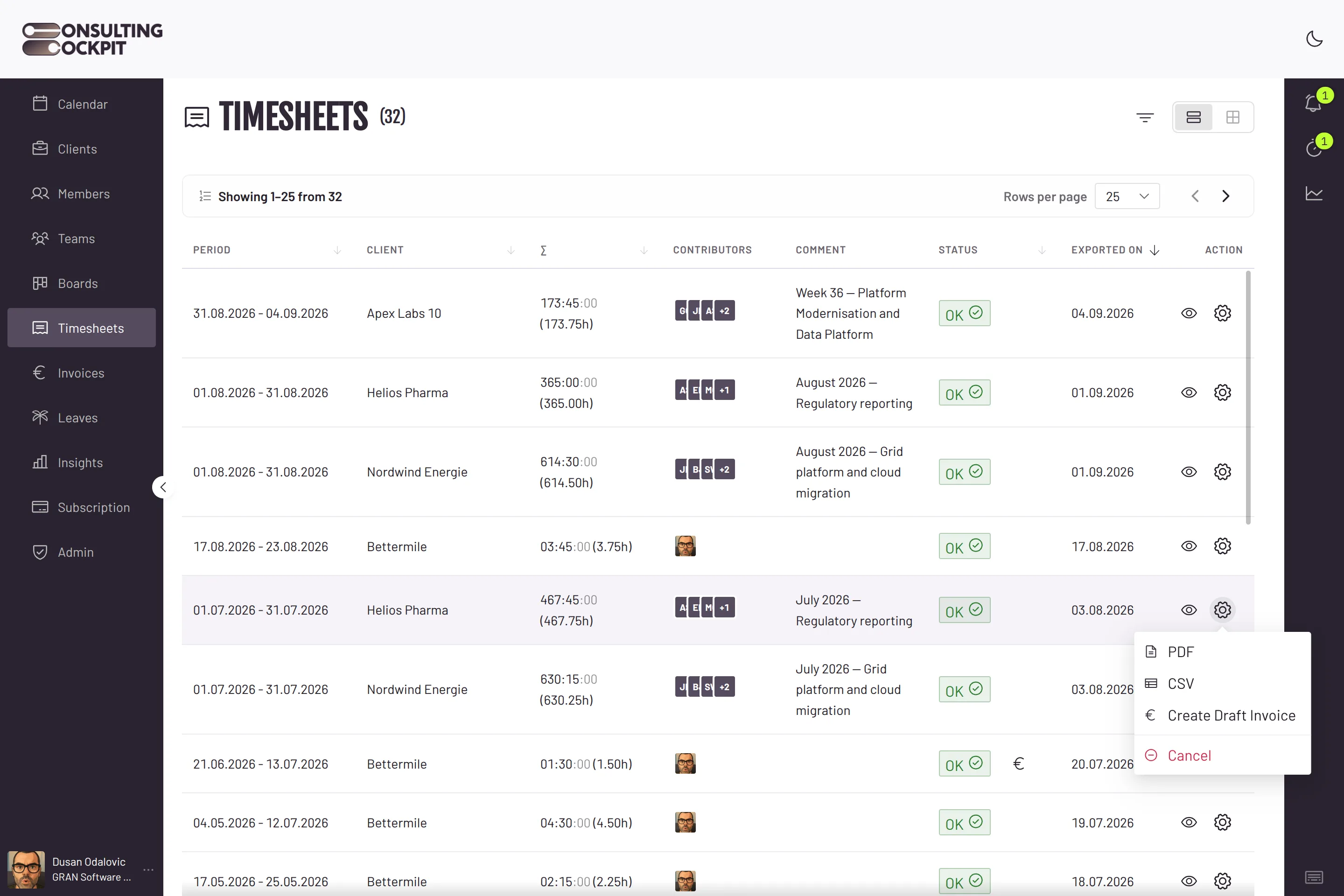
Each finished invoice means one more PDF to download and mail to the accounting inbox, usually by someone with better things to do.
At month end your tax advisor asks for an invoice that went to the client but never reached the books.
The original invoice was forwarded. The reversal that cancels it was not, so the books still show money you will not receive.
Nobody can say which invoices were forwarded, when, or to which address, without searching a mailbox.
An owner sets it up once in Settings, under Integrations. Every invoice after that goes out on its own.
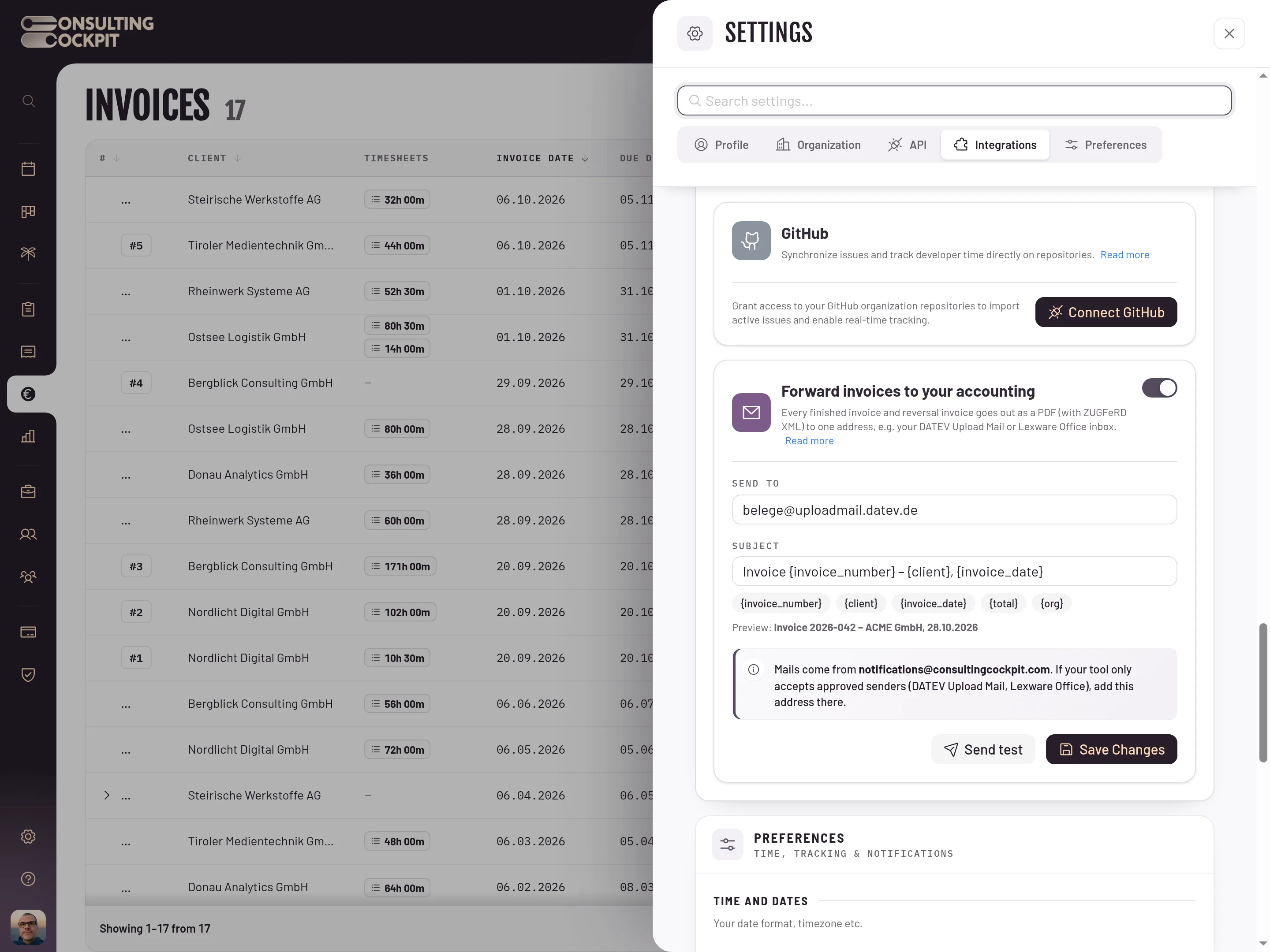
On the card Forward invoices to your accounting, turn the switch on and enter the address, such as your DATEV Upload Mail or Lexware Office inbox.
Mails come from notifications@consultingcockpit.com. DATEV Upload Mail and Lexware Office only accept mail from approved senders, so add this address there.
Leave it empty for Invoice {invoice_number} – {client}, or build your own from {invoice_number}, {client}, {invoice_date}, {total} and {org}. A preview shows the result.
Click Send test to get a short test mail, without an invoice, at that address. Once it arrives, click Save Changes.
Every finished invoice and every reversal invoice is mailed as a PDF with the embedded ZUGFeRD XML, the same file Download PDF gives you.
Every invoice carries its own send status, so a missing mail is spotted on the invoice, not at month end.
The invoice shows Sent to the address with date and time, or Failed. In the invoice list an envelope next to the number turns green when sent and red when it failed.
While it is switched on, owners can send an invoice again from the invoice itself. Older invoices, finished before you switched it on, are sent the same way.
The mail goes out after the invoice is finished. A failed mail never blocks or undoes the invoice; it shows as Failed, with the reason when you hover over it.
An unknown placeholder is flagged as you type and refused on save, and the subject stops at 200 characters. The placeholders you can use sit right under the field.
The PDF that goes out is the e-invoice that was checked against EN 16931 before it was finished and built from a locked timesheet, with a German page on the same topic, see EN 16931 E-Invoicing, Timesheet to Invoice and E-Rechnung Software (German)
Real screens from the product — swipe or use the arrows.
Any tool that takes invoices at an email address and lets you approve notifications@consultingcockpit.com as a sender, such as DATEV Upload Mail and Lexware Office (Belegempfang, in the XL plan). sevDesk does not work: its Autobox only accepts mail sent from the address you registered with at sevDesk.
Only owners of the organisation can set it up. There is one address per organisation, and every invoice goes to it.
Your subject, one line naming the invoice number, your company and the client, and the invoice PDF with the embedded ZUGFeRD XML. It is a ZUGFeRD PDF, not a separate XRechnung file.
The invoice shows Failed, with the reason when you hover over it. There is no automatic retry, so an owner clicks Send again once the address or the sender approval is fixed.
Not automatically. Only invoices finished after you switch it on go out on their own. To forward an older one, open it and click Send.
Yes. When you reverse an invoice, the reversal invoice is mailed to the same address, so the books see the correction too.
Enter your DATEV Upload Mail or Lexware Office address, send a test, and let the next finished invoice go out on its own. Free for 30 days.