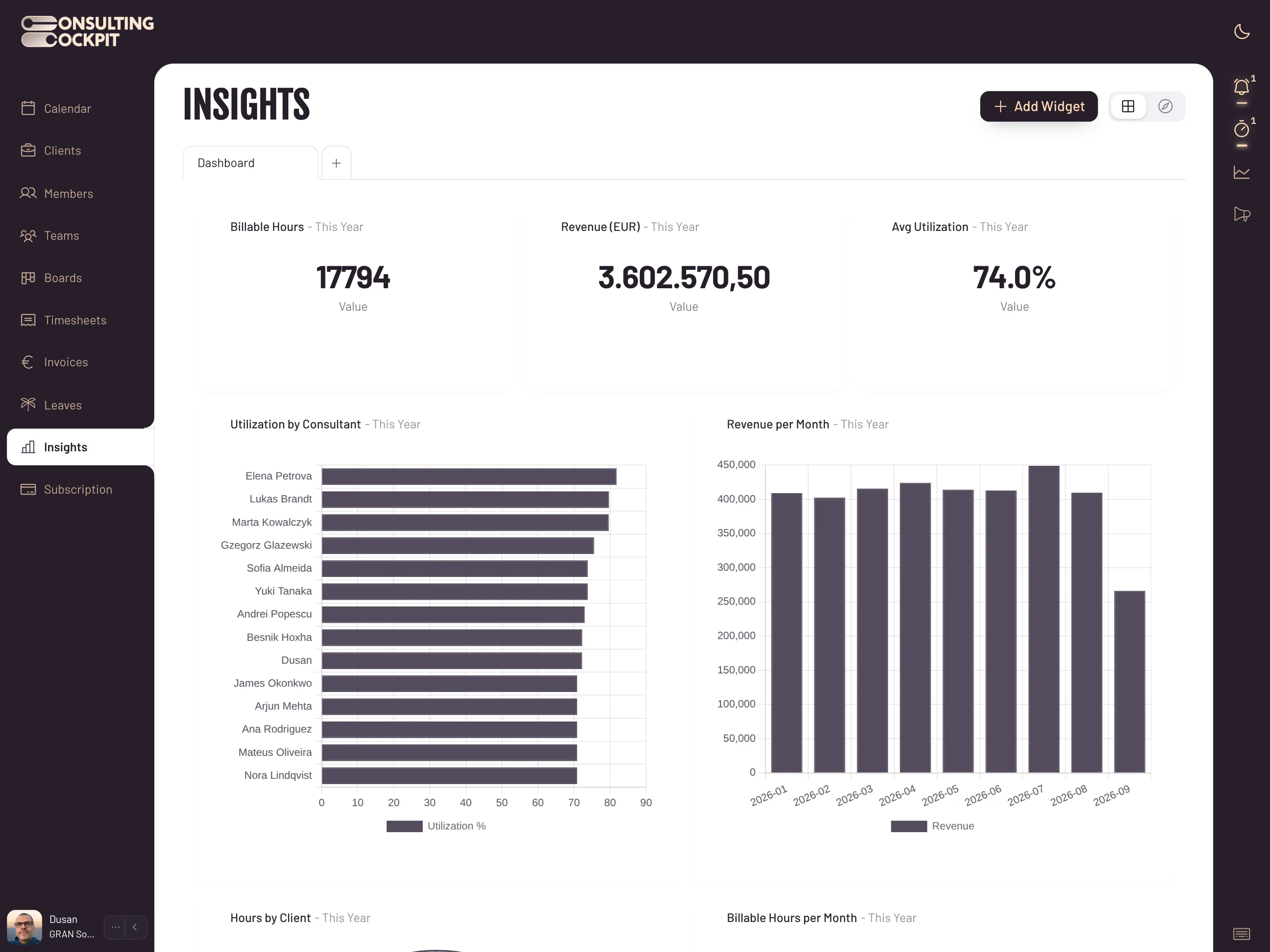
Log the hours while you work: a timer sits in the header of every screen, the day, week and month calendar is editable by hand, and each entry carries a client, a project and a description.
Consultants rebuild the week from their calendar and inbox, and the version they hand in is always shorter than the week they worked.
Time booked without a client and a project cannot be billed, so it quietly turns into free work.
As a managing partner you find out what the team booked when the timesheets arrive, not while the week is still running.
When a client questions a line on the invoice, a spreadsheet cannot show who booked what, when, and what was changed afterwards.
Start the timer when the work starts, or draw the entry on the calendar afterwards — the result is the same entry.
Pick the client and project, type what you are doing, and the timer keeps running while you move around the app. The description field suggests your own entries from the last month, your board tasks and your linked issues, so a repeat booking is two keystrokes.
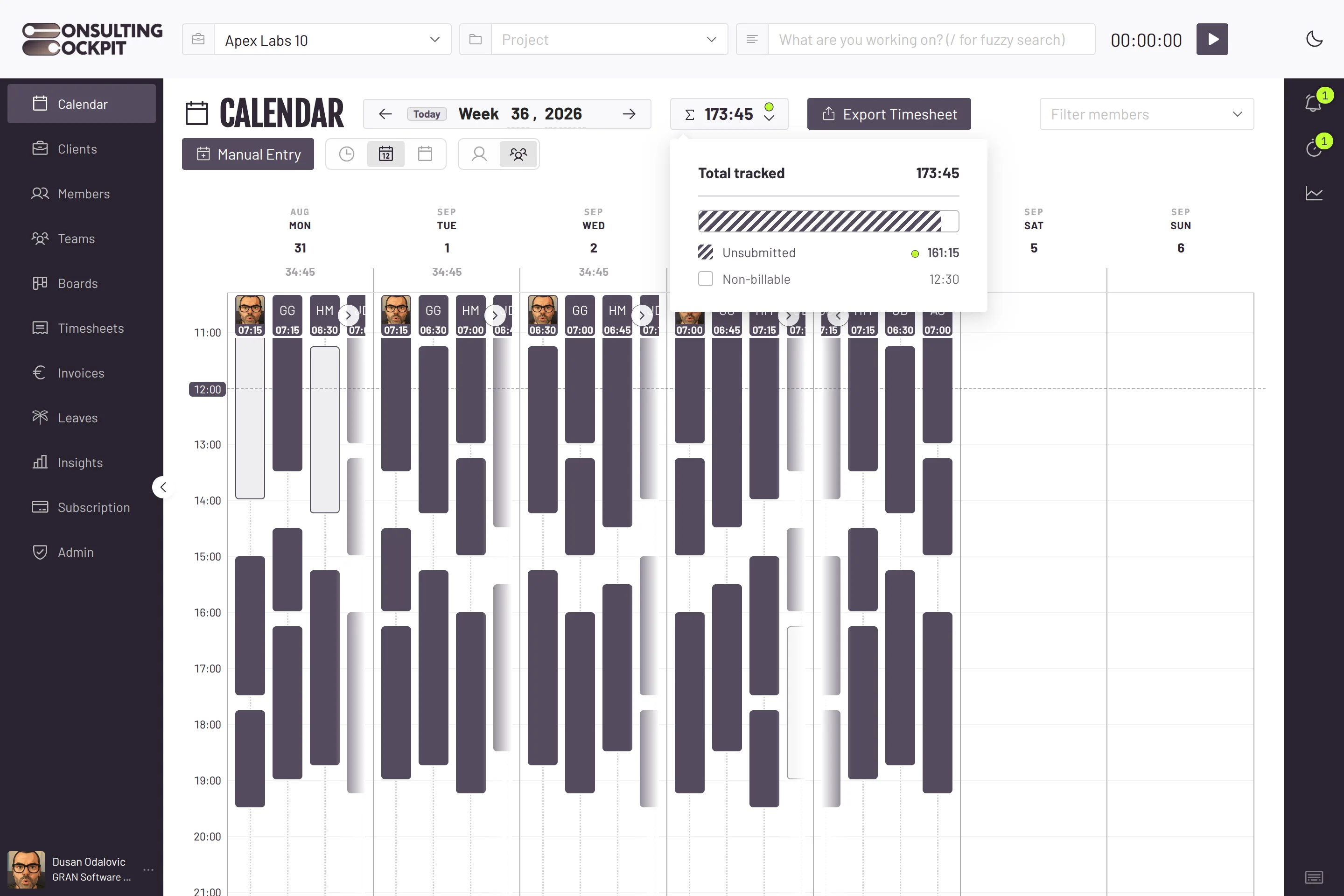
Day, week and month views. Drag on an empty slot to draw an entry, drag the block to move it, drag its edge to change the length. A block stops at its neighbour, so two entries never sit on top of each other, and the step is your own setting from one to sixty minutes (Alt for five, Alt with Shift for fifteen).
Right-click an entry to split it at the minute you clicked, with both halves keeping the client, project and description. Move or copy it to a date range, so a Tuesday stand-up across the next eight weeks is one gesture, not eight entries. Entries already on a timesheet stay frozen.
Manual entry takes a list of dates in one go, for a week on site or a standing appointment.
Start a second timer for another client and the first keeps counting. The Running panel in the sidebar lists every clock with its client and project, Ctrl+K then Stop all trackings closes them at once, and the timers live on the account, so a reload or another device shows the same clocks.
The entry is matched to the client's purchase order, the rate that applies on that date is frozen onto it, and the cost is set aside against that budget. Non-billable time stays visible, just counted separately.
The calendar header shows total, submitted, unsubmitted and non-billable hours for the period. The export button tells you how many unsubmitted billable hours it will take with it before you press it.
The checks that run without anyone remembering to run them.
An entry that overlaps one you already have for that client is refused when you save it, and a second timer will not start on top of it. Two different clients can be tracked at the same time.
After eight hours without a stop, we email the consultant so the entry is corrected the same day instead of at month end. Each person switches that reminder on for themselves.
Once an entry sits on a timesheet it is frozen: it keeps its rate and its budget, and later changes to a purchase order never move it.
Creating, changing or splitting an entry records who did it and the value before and after — the record that supports a GoBD-minded audit and settles a client dispute.
Every saved entry is already priced and waiting for the month's timesheet, and you can log one by asking your AI assistant. For the whole cycle from client to e-invoice, see PSA Software and AI Assistants
Real screens from the product — swipe or use the arrows.
No. Both produce the same entry, and consultants on the same team can work either way. Most start the timer for long blocks and draw the short ones on the calendar afterwards.
Yes. Each client gets its own timer and they all keep counting. Only an entry that overlaps a running or saved one for the same client is refused, so one engagement is never double-billed.
Yes, unless it already sits on a timesheet. Drag it, stretch it or split it, and the correction is recorded with your name and the value it had before. Drawing needs a mouse or trackpad; on a phone the manual entry form covers the same ground.
Yes. Organisation owners can switch the calendar to the team view, see everyone's entries side by side, filter by member, and create an entry in a member's name.
They get a reminder email once the timer has run for eight hours, if they have switched that reminder on. The start and end times of the entry can be corrected afterwards.
An hour is billable when it matches an active purchase order for that client and project. If no purchase order covers it, the hour is still tracked, just marked non-billable.
Yes. Split an entry at any point inside it and you get two entries, each keeping the description and project of the original.
Yes. An entry started from a board task or a linked issue keeps that link, so you can go from the hour back to the work it paid for.
Work out a consultant's utilization rate, billable revenue and the value of unbilled hours in a few seconds. Free, no sign-up.
Open the Billable Hours CalculatorPut the timer in front of your consultants and let the hours arrive with a client, a project and a rate already on them. Free for 30 days.